It's been eight months since Twitter Inc. killed off one of its most popular features. But now there's good news for GIF nerds: Animated Twitter avatars are back.
GIF avatars, the company claimed, were never supported, even though users had countless tutorials for sneaking past the restriction. In September, Twitter closed those loopholes.
For Twitter users already sporting GIF avatars, like Mr. GIF and BuzzFeed's Katie Notopoulos, they could keep their animation so long as they didn't change it.
Thanks to a hidden Twitter API loophole found by Indonesian programmer Citra Kasuma, GIF avatars can be added back. Here are the six easy steps:
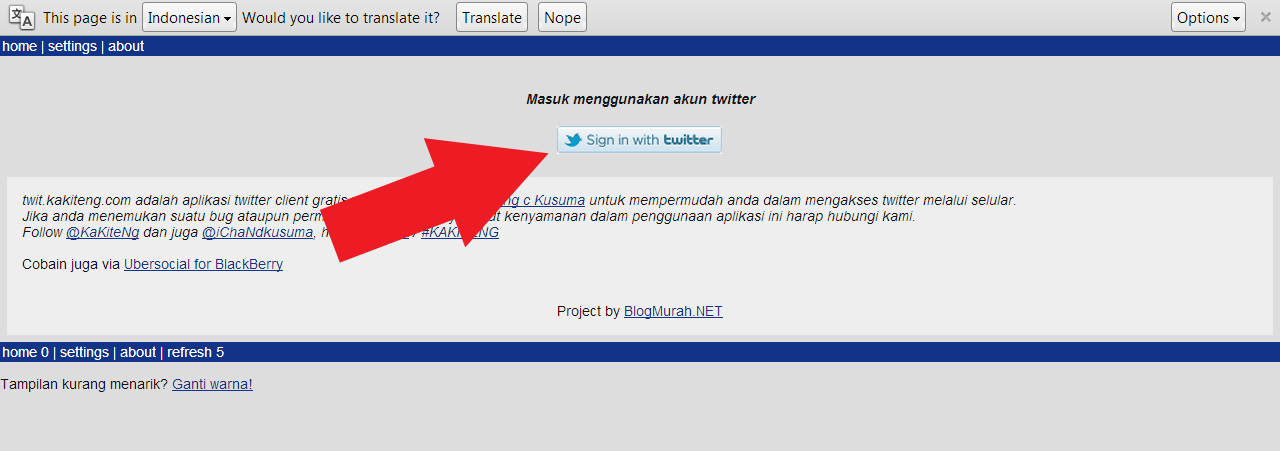
1) Visit http://twit.kakiteng.com/ and click the "Sign in with Twitter" button.
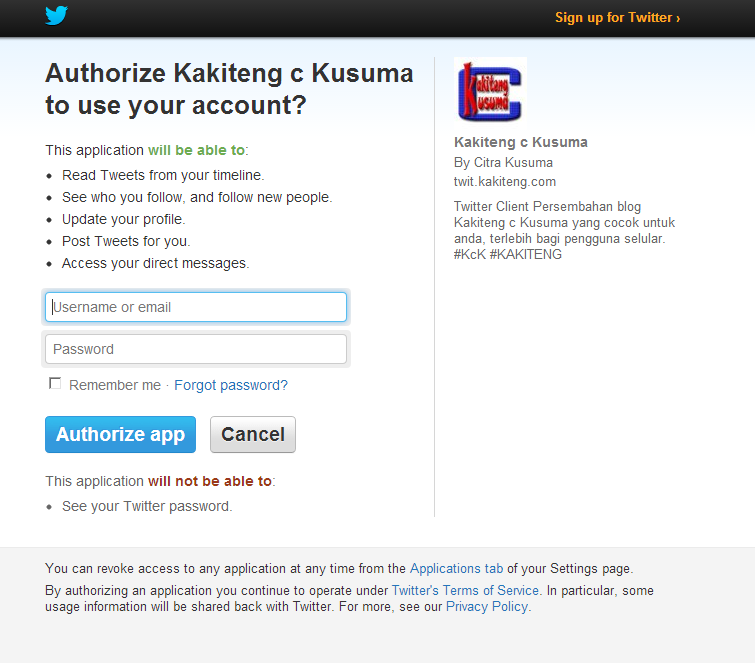
2) Plug in your Twitter credentials.
3) Select "Edit Profile."
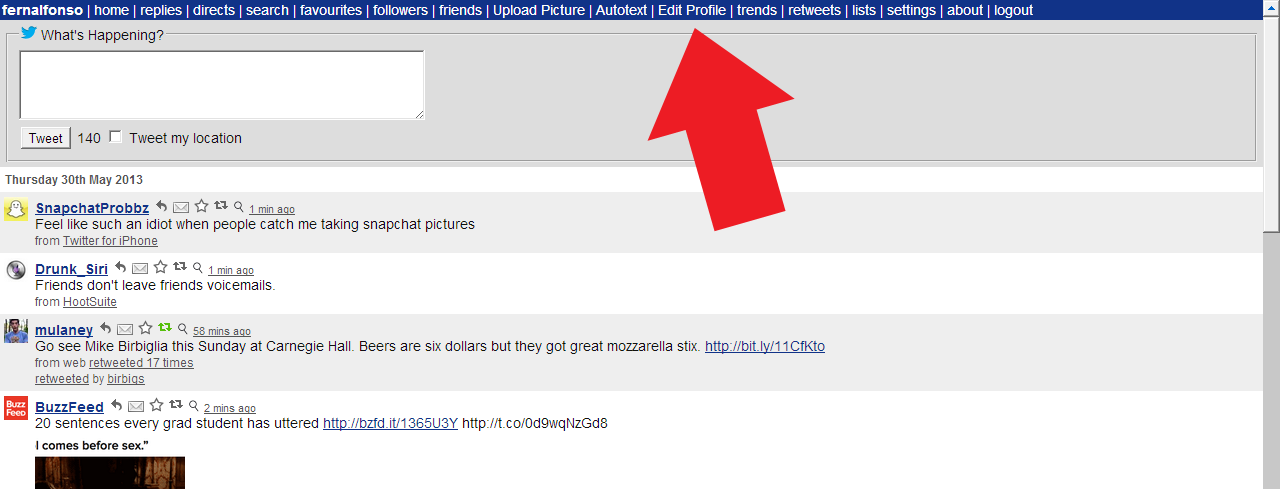
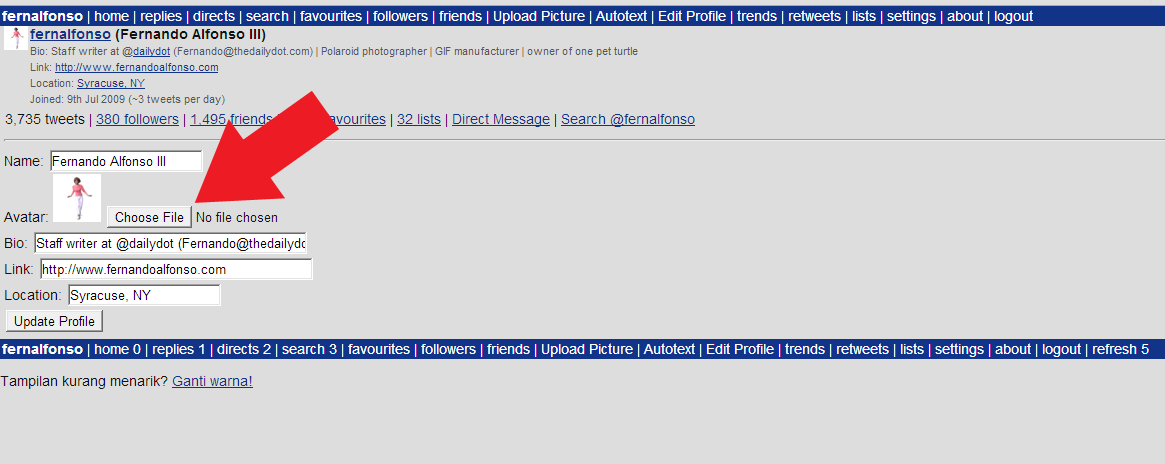
4) Select your GIF animation.
For best results, GIFs should be sized at 128px, 192px, or 384px; less than 250kb; and not have a transparent background.
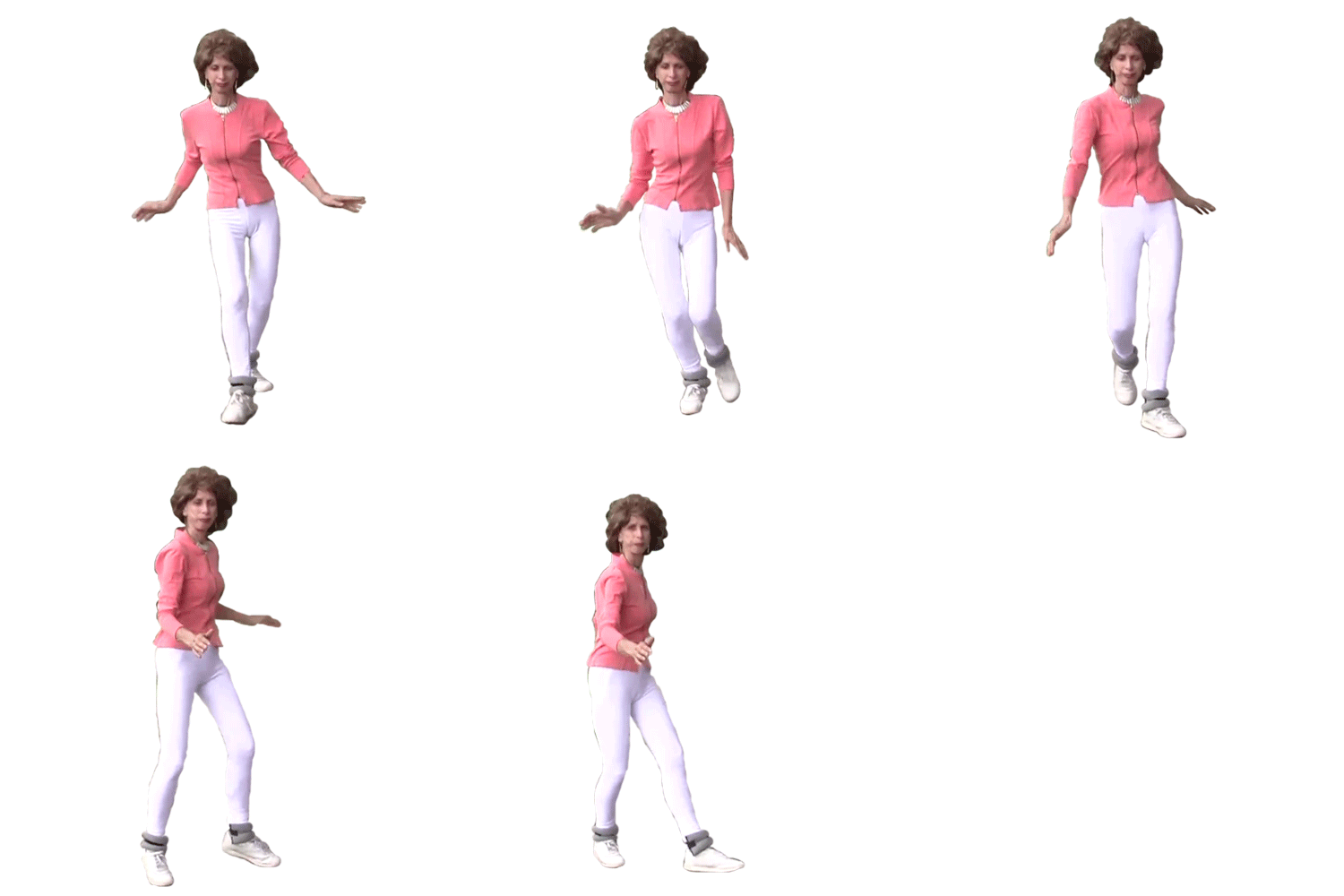
For my GIF, I used one of Joanna "Prancercise" Rohrback, created by GIF master Jason Reed. Or if you want to make your own GIF, check out these simple Web and mobile apps.
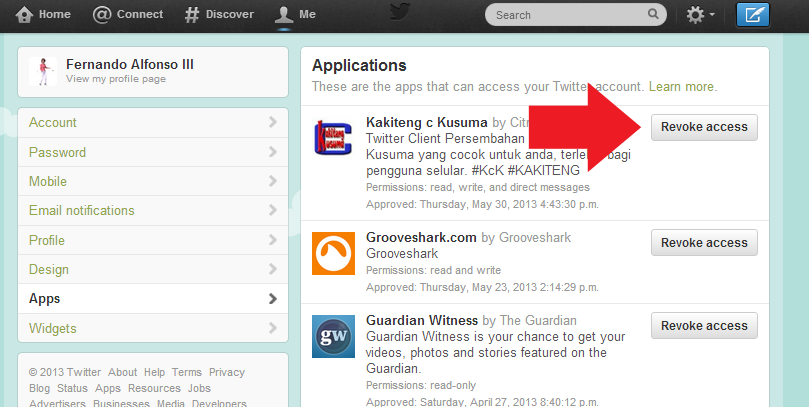
5) Once your avatar is uploaded, go to your Twitter settings → Apps and revoke access to the "Kakiteng c Kusuma" app.
You may also want to change your password. This is to prevent your account from being compromised in the future.
6) Sit back and enjoy the GIF.
Most GIFs will animate in the Twitter's Web timeline. Depending on the browser you're using, the size of the GIF, and whether the app is working properly, your success may vary. It is a loophole, after all.
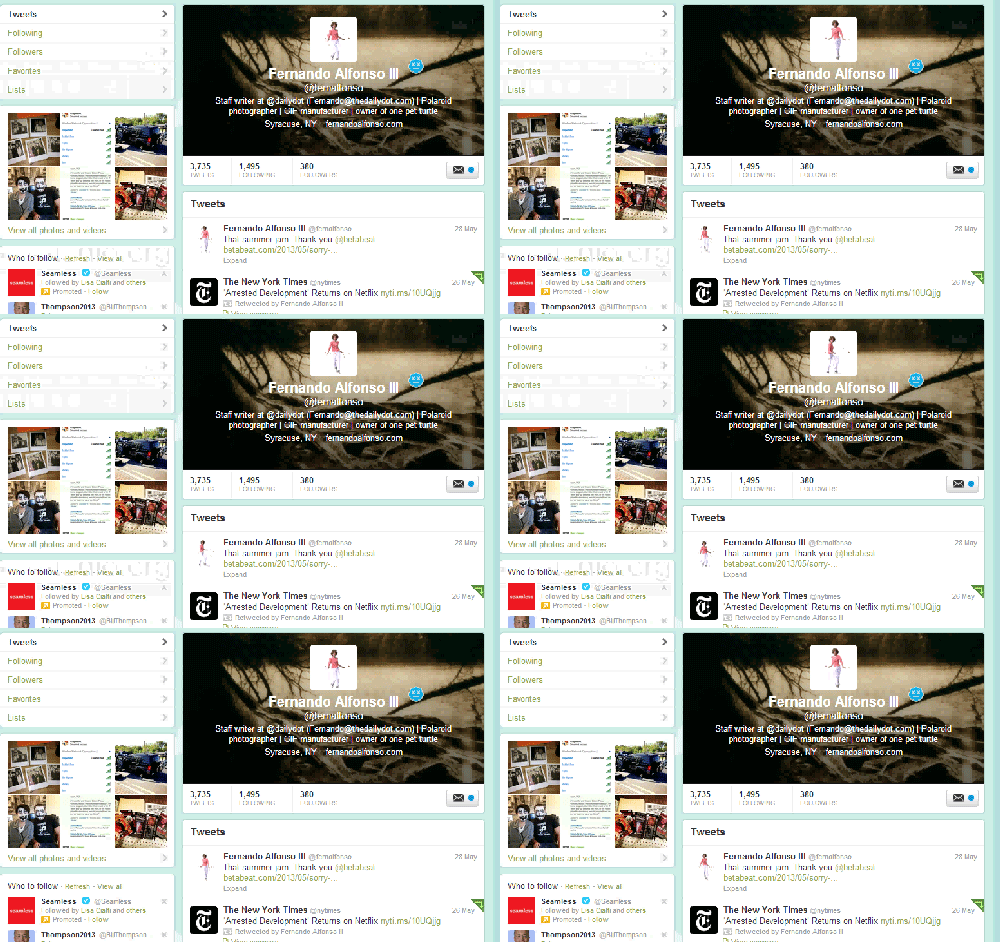
Illustration by Jason Reed